Ragdoll Simulator Controls Hub
Every input players need for ragdoll, camera, Anti-Gravity, Safe Mode, and VR movement.
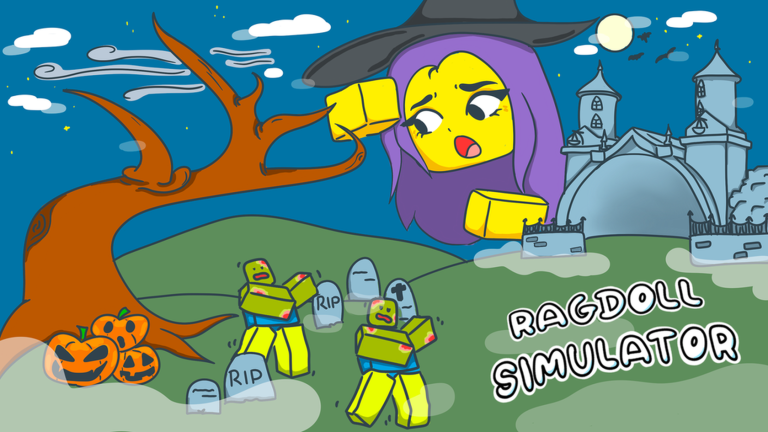
Ragdoll Simulator on Roblox is a physics sandbox by Frobulate under Studio Koi Koi. The fun is immediate, but the first minutes feel chaotic if you do not know which keys toggle ragdoll, first person, and Anti-Gravity. This Controls hub is the map of every official input surface documented for the experience, with deep pages for PC Controls, Xbox Controls, VR Controls, Safe Mode and Anti-Gravity, dedicated Anti-Gravity Controls, and Freecam and Settings.
Why controls matter in a ragdoll sandbox
Unlike a linear simulator with a single grind loop, Ragdoll Simulator asks you to treat your avatar like a soft-body toy. You fall from spawn, bounce off attractions, and sometimes get flung by other players. Knowing when to ragdoll with F (or X on Xbox), when to lock first person with T (or Y), and when to enable Anti-Gravity with R (or B) is the difference between a hilarious montage and a frustrating session. Safe Mode, available from the shield on the left HUD, is equally important if you want to explore without constant push griefing.
Studio Koi Koi has shipped multiple controls improvements. The reset button on the left side of the screen is not just a respawn — it helps you discover new map positions after the spawn-falling change. Pair that with teleport-to-top signs around the infinite slide and you can practice inputs in safer pockets of the map.
Platform overview
PC desktop
Keyboard players get the clearest published mapping: F toggles ragdoll, T switches first person, and R enables Anti-Gravity. Mouse look plus WASD movement still apply when you are not fully ragdolled. Open the PC Controls guide for edge cases, camera tips, and how Anti-Gravity interacts with attractions like the rocketship and jetpack game pass.
Xbox console
Controller players mirror the same verbs on face buttons: X for ragdoll, Y for first person, B for Anti-Gravity. Stick movement and camera rules follow Roblox console conventions. See Xbox Controls for a full table and griefing tips when Safe Mode is off.
VR headsets
Ragdoll Simulator advertises VR support. Movement uses the right joystick combined with right-hand aiming to choose direction. That is a different skill profile than keyboard flinging, so use the VR Controls page and the embedded gameplay video before you invite friends into a crowded public server.
Mobile and touch
Touch clients rely on on-screen sticks and buttons. The shield Safe Mode control and reset control remain on the left HUD. Exact ragdoll button placement can vary with Roblox UI scaling, so treat mobile as “same verbs, different chrome” and cross-check against the live Controls Cheatsheet tool.
Safe Mode and Anti-Gravity as core systems
Safe Mode is not a difficulty setting — it is a social filter. Tap the shield on the left when players spam Force Push or rocket launches. Anti-Gravity changes how your limbs and body respond while you explore taller map sections added in the infinite slide update. Both systems get a dedicated breakdown in Safe Mode and Anti-Gravity, including when to leave Safe Mode off for chaotic friend sessions.
Practice loop for new players
- Join the official Ragdoll Simulator experience.
- Immediately locate the left HUD: shield (Safe Mode) and reset.
- Practice F / X ragdoll toggles on flat ground near spawn.
- Toggle first person (T / Y) to understand camera while tumbling.
- Try Anti-Gravity (R / B) near the infinite slide or teleport-to-top signs.
- Read How to Play and Beginner Tips once the verbs feel natural.
Related wiki paths
Controls knowledge unlocks everything else on this wiki. After you memorize inputs, continue to the Map Overview, Items and Game Passes, and Events hubs. If you only need a quick reference while alt-tabbing, open the interactive Controls Cheatsheet. For ranked spending decisions after you can move confidently, visit the Game Pass Tier List.
This hub stays intentionally short on lore and long on actionable bindings because search traffic for “Ragdoll Simulator controls” is almost always a how-to intent. Bookmark the child pages that match your device, and re-check after Studio Koi Koi posts new control improvement notes on their news site.
Platform matrix mindset
PC documents the canonical hotkeys. Xbox remaps the same verbs. VR replaces keys with aim and joystick. Touch leans on HUD. Learn verbs first — ragdoll, camera, Anti-Gravity, Safe Mode, reset — then memorize platform labels.
Hub routing
New on keyboard? PC Controls. New on gamepad? Xbox Controls. New in headset? VR Controls. Getting griefed? Safe Mode and Anti-Gravity. Filming clips? Freecam and Settings. Need a live table? Controls Cheatsheet.
After control improvement patches
Studio Koi Koi has shipped control tuning passes. If something feels floatier or snappier than last month, that may be intentional. Re-run the practice course on your platform page before blaming lag.
Choosing your first child page
Pick PC Controls if you have a keyboard, Xbox Controls for face buttons, VR Controls for headset aim+joystick movement, Anti-Gravity Controls for R/B pulse drills, and Safe Mode and Anti-Gravity when grief questions dominate. The interactive Controls Cheatsheet is the alt-tab companion once you know which platform article is yours.
Frequently Asked Questions
Quick answers players ask before jumping into the sandbox.
What are the PC controls for Ragdoll Simulator?
On PC, press F to ragdoll, T for first person, and R for Anti-Gravity. Safe Mode uses the shield on the left HUD.
What are the Xbox controls?
On Xbox, press X to ragdoll, Y for first person, and B for Anti-Gravity. Safe Mode still uses the shield icon on the left.
How does VR movement work?
Aim with your right hand and use the right joystick to move. Details and video live on the VR Controls page.
Where is Safe Mode?
Tap the shield icon on the left side of the screen to enable Safe Mode when other players grief you.
Is there a single cheatsheet for all platforms?
Yes. Use the Controls Cheatsheet tool for tabbed PC, Xbox, VR, and mobile reference.